· 3 min read
How do I log a daily diary entry?
One entry per calendar day — weather, crew, equipment, and notes — and how to seal it so it can't be altered later.
- Open the project's Field Ops tab, then the Daily diary sub-tab.
- Click “New entry.”
- Fill in Date, Crew on site, Weather, Equipment on site, and Notes. For weather, there's a “Fetch” button that pulls current conditions automatically instead of typing them in.
- Click “Save entry.” Photos can be added after saving.
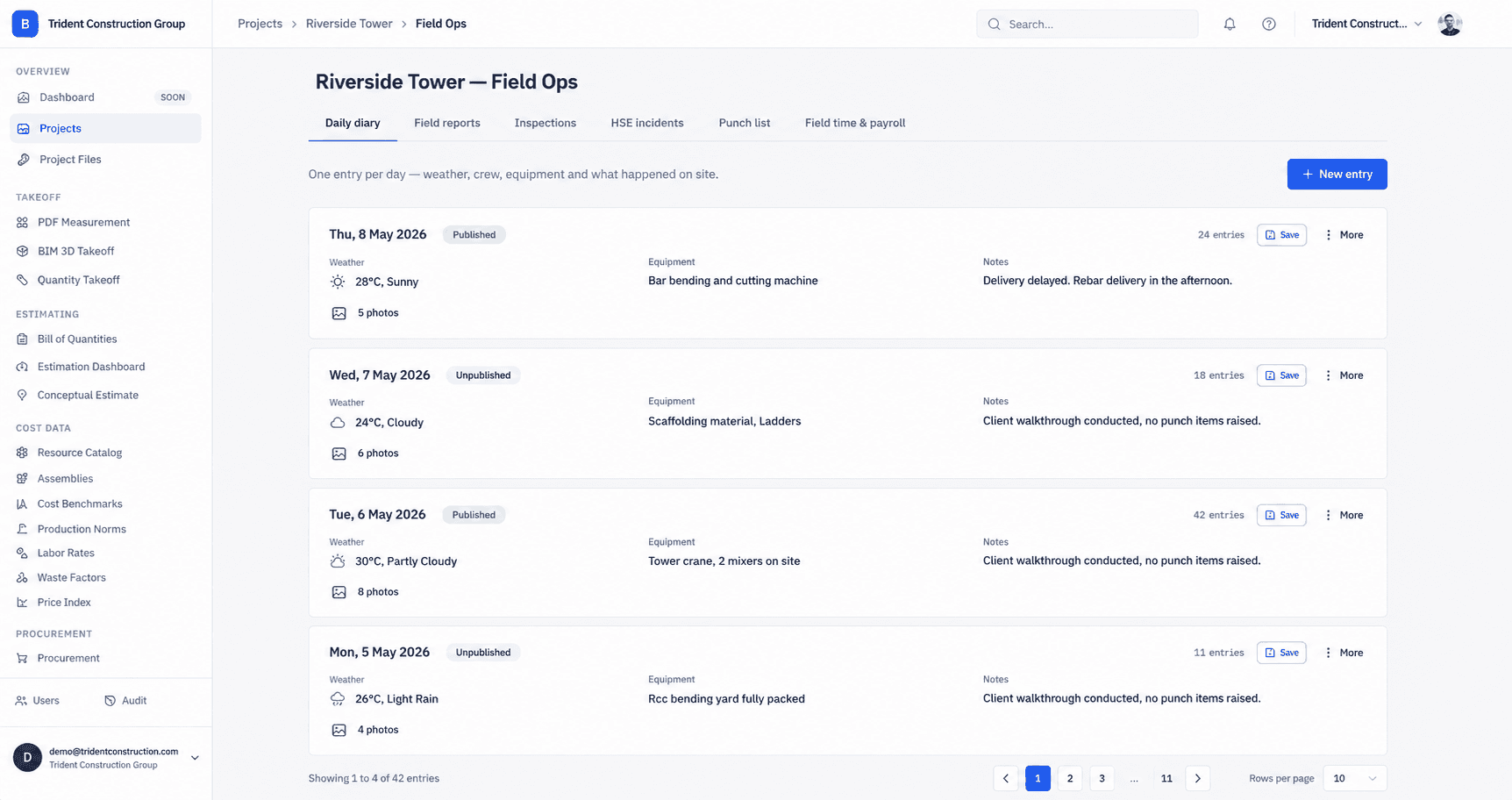
One entry per day
Buildiante enforces exactly one diary entry per calendar day per project — the date can't be changed once an entry exists, so there's never ambiguity about which day's conditions an entry is describing.
Sealing an entry
Once an entry is complete, you can “Seal” it — this computes a tamper-evident hash over the entry and its photos, and the entry can no longer be edited or have photos added or removed afterward. A sealed entry shows a green “Sealed” badge, and gains a “Verify” button that re-checks the hash on demand — confirming the content still matches what was sealed, or flagging a mismatch if it doesn't. Each entry also has a direct PDF download.
This matters most when a diary entry ends up as evidence in a dispute — a sealed entry is a record you can prove wasn't altered after the fact, not just a claim that it wasn't. See how Buildiante handles accountability elsewhere.
Was this article helpful?
Prefer Buildiante in Google Search
Add Buildiante as a preferred source to see our updates more often in Google's Top Stories and AI results.