· 4 min read
How do I build a project schedule from my BOQ?
Add activities and milestones by hand, or generate a starting schedule straight from your priced BOQ sections.
There are two ways to start a schedule: build it activity by activity, or generate a starting point from your BOQ.
Add an activity by hand
- Open the project's Schedule tab.
- Click “Add activity.”
- Enter a Name and a planned start and planned end date.
- For a zero-duration event instead of a span of work — a handover date, an inspection — check “This is a milestone.” The form collapses to a single Date field, and the activity's start and end are forced to match.
- Click “Add activity.”
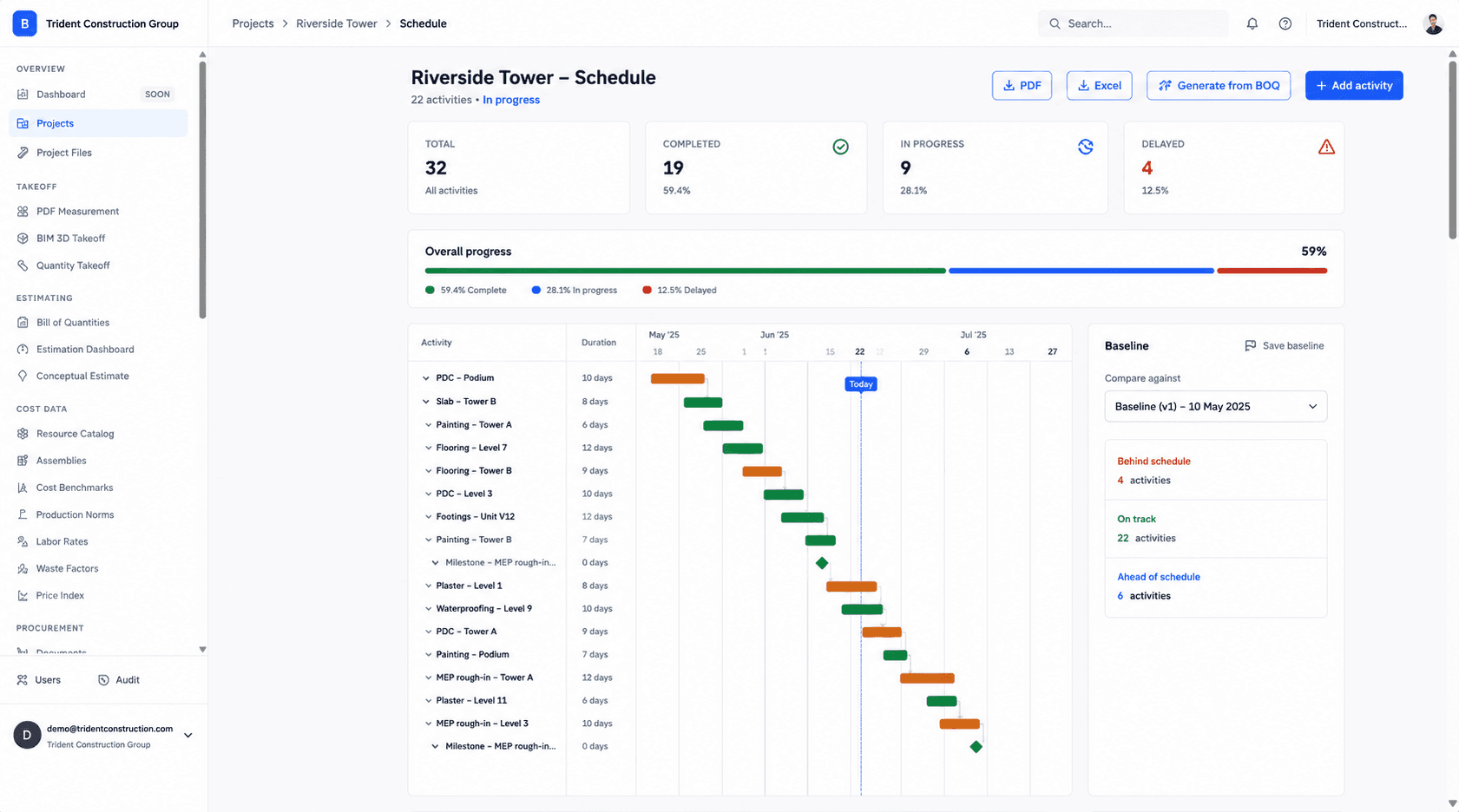
Or generate a starting schedule from your BOQ
The “Generate from BOQ” button creates one activity per priced top-level BOQ section automatically, chained one after another. It's additive — running it again won't duplicate or overwrite activities you've already added by hand — and it's a starting point to adjust, not a finished schedule: you'll still want to set real dependencies and dates. See setting dependencies.
Who can do this
Owner, Admin, and Project Manager can add and edit activities. Estimator and Field Supervisor can view the schedule but not change it.
Was this article helpful?
Prefer Buildiante in Google Search
Add Buildiante as a preferred source to see our updates more often in Google's Top Stories and AI results.